
Bodies Are Shapes; Components Are Parts
Posted by SFL Designs on Nov 12th 2026

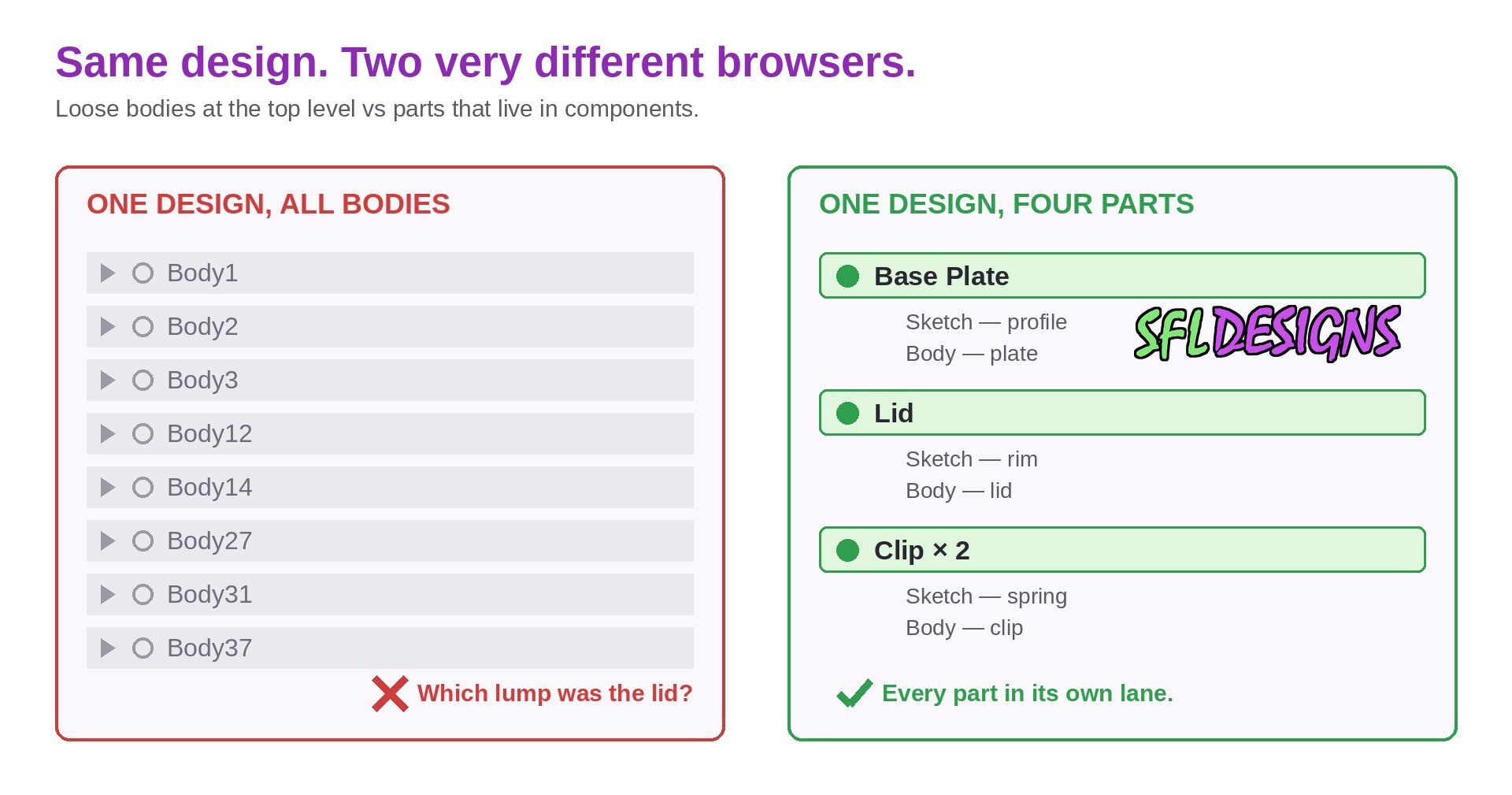
Open a Fusion 360 design from six months ago and play a little game: can you tell what anything is? If your browser (that tree of stuff on the left side of the screen) is a long list of Body1, Body12, and Body37, congratulations, you have met the bodies-versus-components problem in the wild. Everybody builds that design once. The fix is not talent. It is one distinction and one habit.
A body is just a shape
A body is a lump of solid geometry. That is all it is. It has no name that means anything, no origin of its own, and no idea that it is supposed to be a part in the world. Extrude a sketch, you get a body. Revolve one, you get a body. Bodies are the clay.
For a single-piece part (a simple bracket, a spacer, a one-and-done adapter), a body is genuinely all you need. One component, one body, print it, done. Nothing in this post should talk you out of that. Simple parts deserve simple files.
A component is a part with an identity
A component is a container that says: this is a thing. It carries its own origin, its own sketches, its own bodies, and it can be positioned, copied, patterned, and joined to other components like a real part in an assembly. The moment your design has more than one piece in it, components stop being optional bookkeeping and start being the whole game.
Reach for components when:
- two pieces move relative to each other, or ever will;
- you need joints (Fusion’s way of saying how parts attach and move);
- the same part appears more than once;
- pieces will be printed, exported, or made separately;
- you want a parts list later and would rather not cry.
A body just sits where you modeled it. A component can be placed, and that difference runs everything downstream.
Rule No. 1: component first, then build inside it
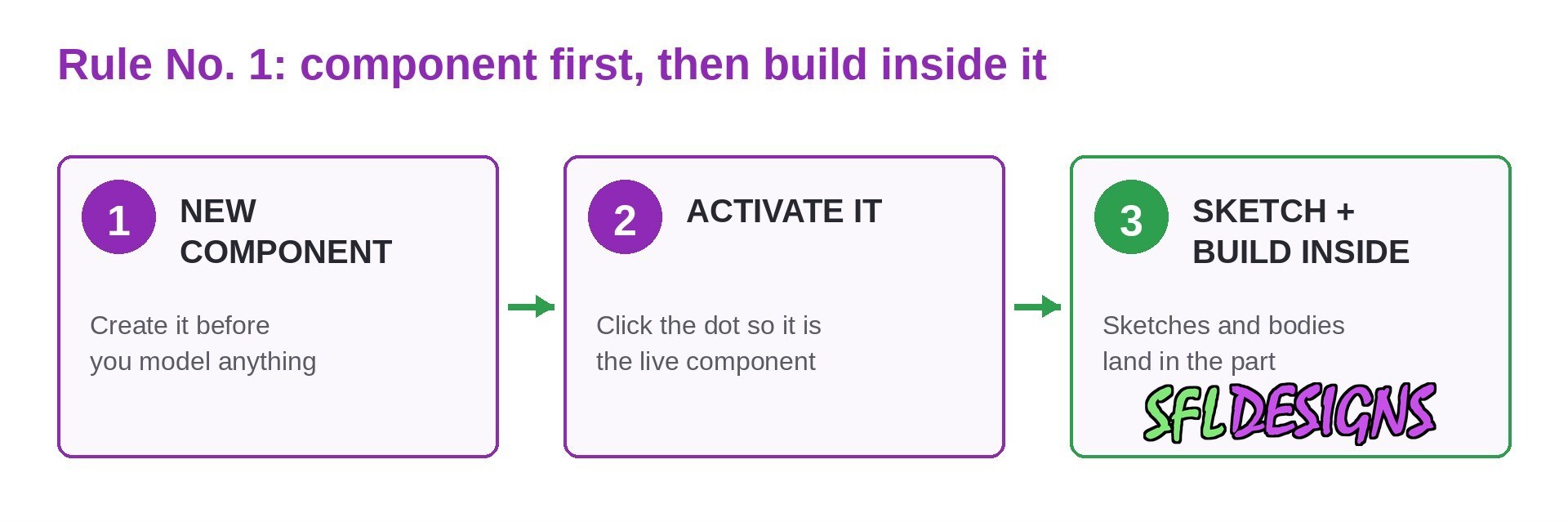
Here is the habit that keeps Fusion files clean, and it has a name in the Fusion community: Rule No. 1. When you are about to model a new part inside a design, create the component first, activate it (click the little circle next to its name so it is the one you are working in), and then make your sketches and bodies.
Why the order matters: when a component is active, every sketch, body, and feature you create lands inside that component automatically. Your timeline stays grouped by part. Skip the step and you model a part’s geometry at the top level of the design. Then moving it, copying it, or joining it later means untangling it from everything else first.
How timelines turn into spaghetti
A messy timeline is rarely one big mistake. It is twenty small ones. A sketch made on the wrong component’s face. A body created at the top level because the wrong thing was active. A move applied to a body that should have been a joint between components. Filleting across parts that were never separated in the first place.
The symptoms are easy to spot: features scattered along the bottom timeline with no grouping, edits that break three unrelated things, and a browser tree where the parts only exist in your memory. The model still works, until you need to change it. Then the bill arrives, with interest.
Shop note: Components are not paperwork. They are the difference between a design you can change next season and a design you have to remodel from scratch because nobody can tell which lump was the lid.
A ten-minute organizing exercise
Take one small assembly you already have (two or three pieces is perfect) and rebuild just its structure:
- Create a new empty design.
- Before modeling anything, create one component per real-world part and name it like a part, not a number.
- Activate the first component. Model only that part’s geometry inside it.
- Activate the next component and model the second part, referencing the first where it genuinely mates.
- Add a joint between them and check the movement looks right.
- Roll the timeline back and forth and notice how each part’s history stays in its own lane.
That is the whole system. It feels slower for exactly one part, and then it pays you back on every edit for the life of the design.
This is the same thinking behind FleetWorks, the printer maintenance planner I built for my own farm. A printer in FleetWorks is not one blob either. It is tracked as its real parts, nozzles, belts, fans and hot ends, each with its own history, because parts wear out on their own schedules, not the machine's.
Bodies are shapes. Components are parts. Model shapes inside parts, keep the parts in components, and the next time you open that file, it will read like you knew what you were doing, because this time, you did.
— Jason, SFL Designs
From our workbench to your display — print it, mount it, light it up.