
Change One Number, Fix the Whole Part: Parameters in Fusion 360
Posted by SFL Designs on Oct 22nd 2026
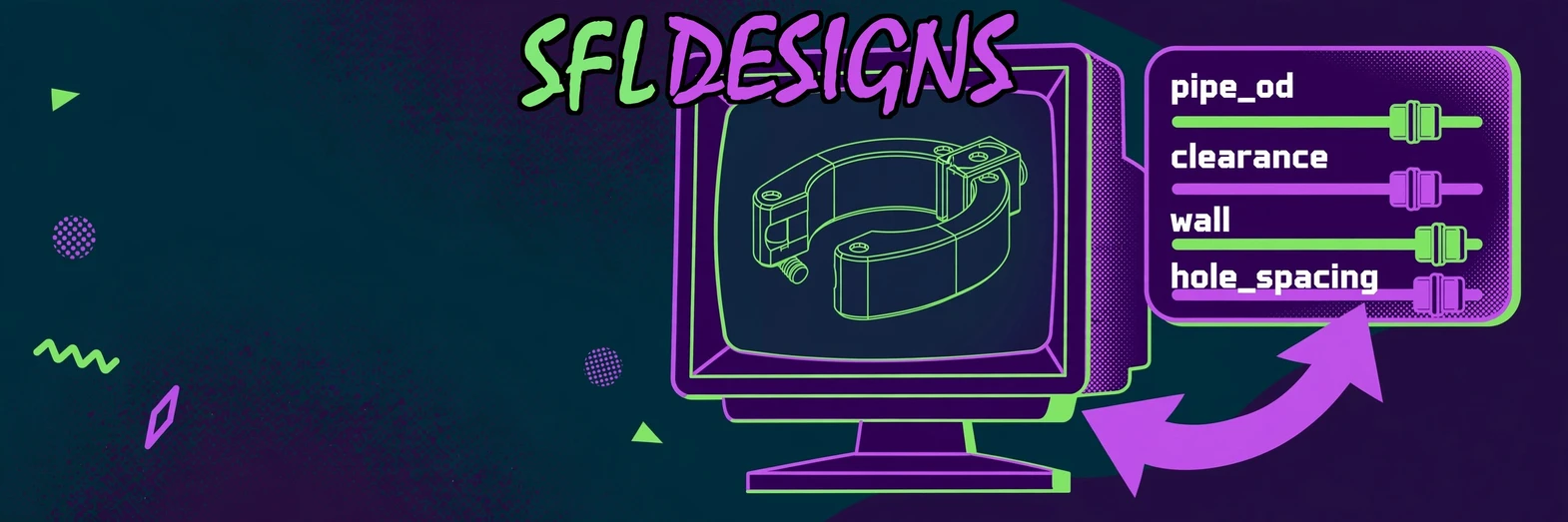
If “make it 3 mm wider” turns into twelve edits and a broken fillet, your model is not parametric. It is a scavenger hunt with consequences.
Parametric design sounds like something that requires a lab coat. It does not. It means important measurements have names and relationships, so changing one decision updates the features that depend on it.
Fusion 360 already creates model parameters behind the scenes. User parameters let you make the important ones readable and intentional.
Give the important numbers names
Suppose you are designing a clamp around a pipe. You could type the pipe diameter into the sketch, type it again into another feature and type a slightly larger number into a clearance cut.
That works until the pipe size changes. Now you get to hunt every copy of the old number.
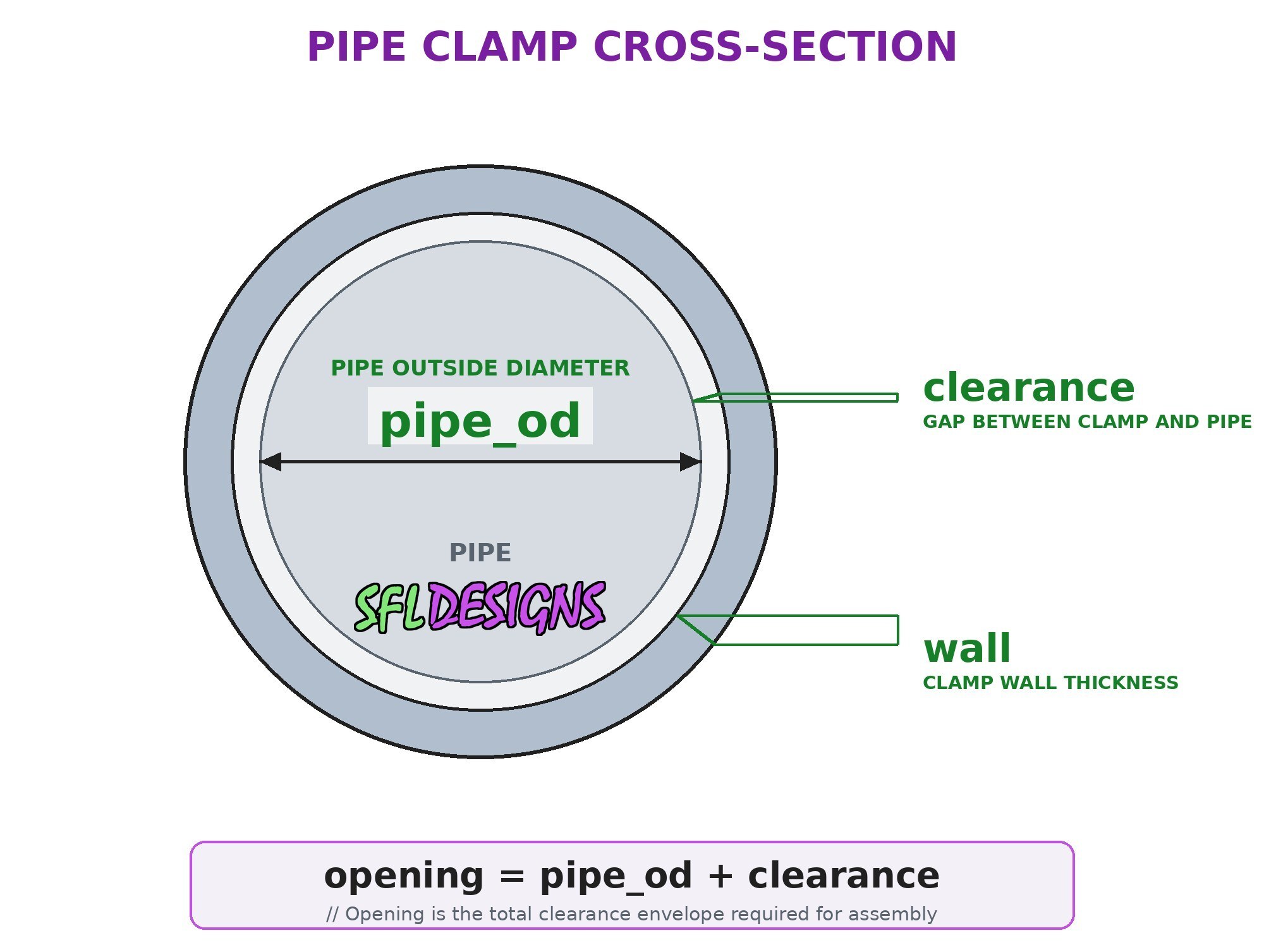
Instead, create a user parameter named pipe_od for the outside diameter and another named clearance for the extra space. The opening can use the expression pipe_od + clearance.
Now the geometry tells the story. If the pipe changes, edit pipe_od once.
Create a user parameter in Fusion 360
In the Design workspace, open Modify > Change Parameters. In the Parameters dialog, add a User Parameter.
Give it:
- a short, clear name such as
pipe_od,wall, orbolt_spacing; - the correct units, usually millimeters or inches for dimensions;
- a starting expression or value;
- an optional comment explaining what it controls.
Names cannot use spaces, so underscores keep them readable. wall is better than d17, unless you enjoy leaving puzzles for yourself.
When you create or edit a sketch dimension, type the parameter name instead of a fixed number. You can also use simple expressions such as pipe_od + 0.4 mm, wall * 2, or mount_width / 2.
Fusion evaluates the relationship and keeps it attached to that dimension.
Parameters are useful when a number has meaning
Do not turn every measurement into a named parameter. A list of 140 names is just another way to lose the plot.
Good user-parameter candidates include:
- a customer or product measurement that changes between versions;
- wall thickness used in several features;
- hardware dimensions such as bolt spacing;
- fit or clearance values;
- repeated spacing, count or offset decisions;
- a dimension you expect to test and tune.
A one-off decorative radius probably does not need a career and a name tag.
Make relationships, not duplicate numbers
This is where parameters become more than a convenient list.
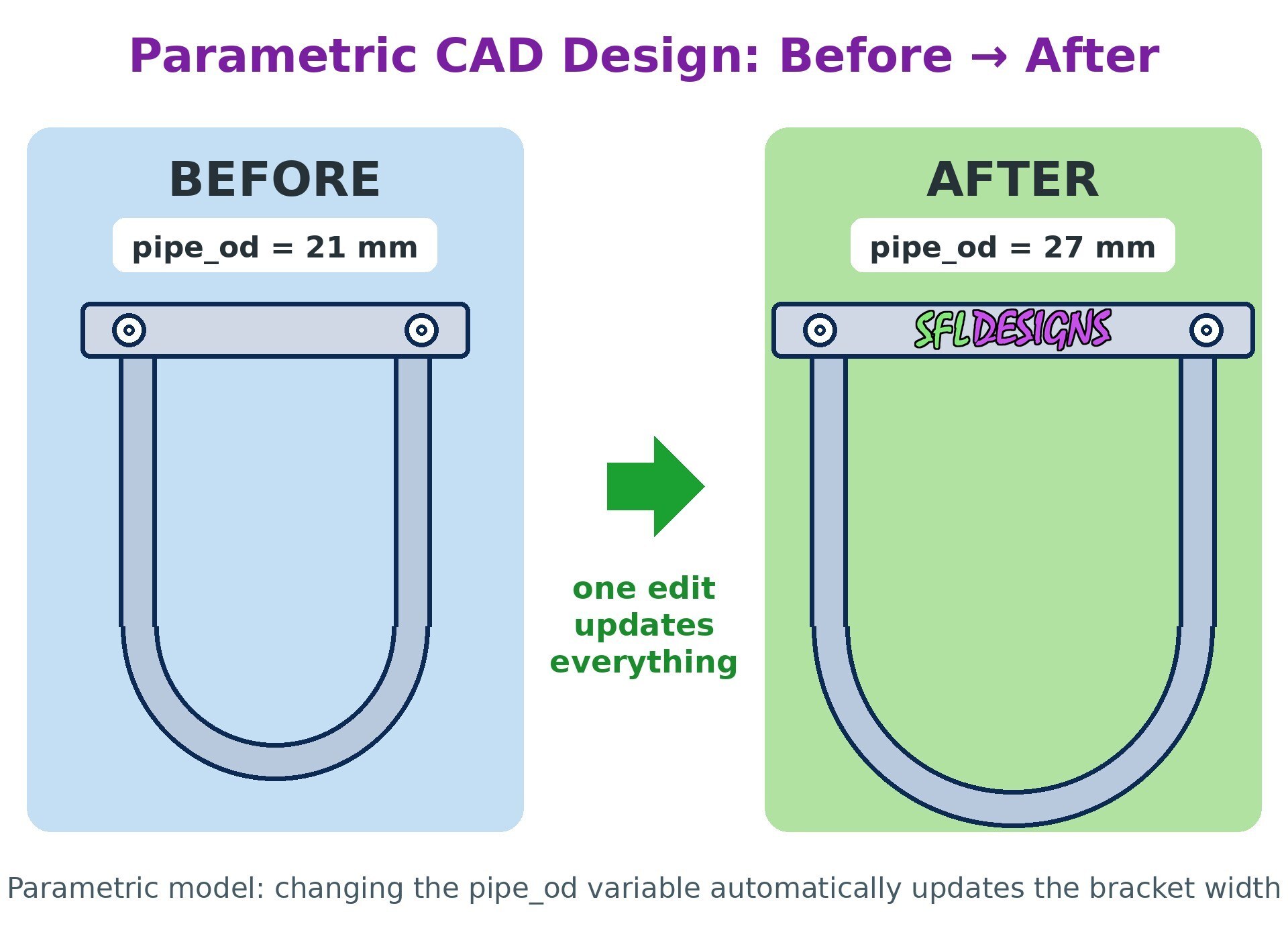
If a mounting plate should always extend one wall thickness beyond the hardware, define it from the hardware: plate_width = hardware_width + wall * 2.
If holes should stay symmetric, sketch from the origin or a centerline and use half-spacing rather than two unrelated offsets.
If a clip opening needs clearance, make the opening depend on the measured object plus the clearance parameter.
Shop note: A strong model stores the design decision once, then reuses it. Duplicate numbers are future disagreements waiting to happen.
Constraints still matter
Parameters cannot rescue a sketch that is free to wander.
A width parameter can control how wide a rectangle is, but it does not tell Fusion where the rectangle belongs. Constrain the sketch to the origin and define the relationships first. Then parameters control the values inside that stable structure.
Autodesk’s own parameter guidance makes the same practical point: well-constrained sketches are less likely to fail when values change.
Test the ugly numbers
Do not test only the size you started with. Change the parameter to the smallest reasonable value and rebuild. Then try the largest.
Watch for:
- fillets that consume the wall;
- holes that collide with edges;
- thin sections that disappear;
- features that flip direction;
- sketches that over-constrain or lose a valid profile.
A model that updates from 25 mm to 26 mm is not necessarily robust. Make it prove it can handle the range you intend to use.
A useful first exercise
Create a simple mounting plate with four user parameters:
plate_widthplate_heightwallhole_spacing
Build a centered rectangle from the origin. Set its dimensions with plate_width and plate_height. Place two holes symmetrically and drive their spacing with hole_spacing. Extrude the plate using wall as the distance.
Then open Modify > Change Parameters and change all four values.
If the model updates cleanly, you have built a small design system, not just a shape.
That is parametric thinking. Name the decisions, connect the relationships, and make future changes boring. Boring changes are wonderful.
— Jason, SFL Designs
From our workbench to your display — print it, mount it, light it up.